How to Connect Access Database in VB.Net
How to Connect Access Database in VB.Net
How to Connect Access Database in VB.Net
Welcome to our Complete guide on how to Connect Access Database Access in VB.Net. This tutorial will not only cover how to connect Microsoft access Database to Visual Basic but, I will include how to Load Records, Insert, Update and Delete records from the Access Database.
But if you want to start how to code using visual studio 2019, you can start your lesson here on how to connect Mysql to visual Studio 2019.
Let’s begin:
Time needed: 20 minutes.
Steps How to Connect Access Database in VB.Net
- Step 1: Create an MS Access Database.
Open an MS Access Database in your Computer and Create a Blank Database and Save it as “inventorydb.accdb”.
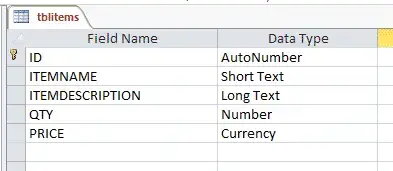
- Step 2: Create a Database Table.
To create a table, follow the image below and save it as “tblitems”.
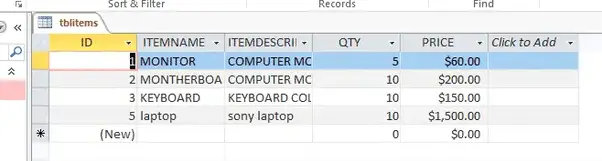
- Step 3: Populate the table.
Add sample records in the table. follow the sample records in the image below.
- Step 4: Create a VB.Net Application.
Open Visual Studio and Create a Visual Basic Application project and Save it as “connectvbaccess”.
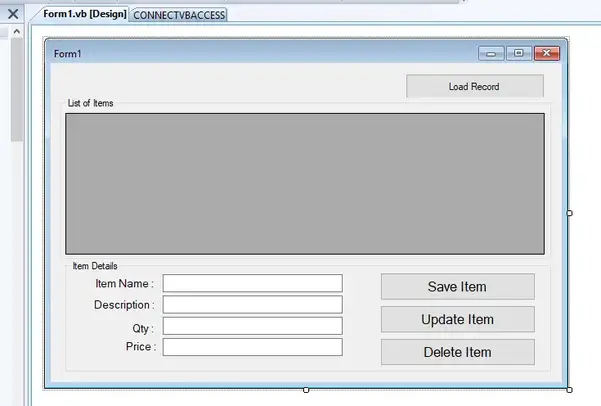
- Step 5: Design the user interface.
To design the form, you need to follow the image below.
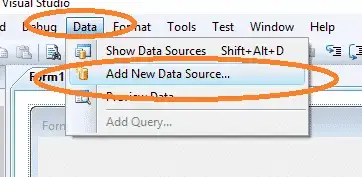
- Step 6: Add New Data Source.
On the menu, click data and select “Add new Data Source..”
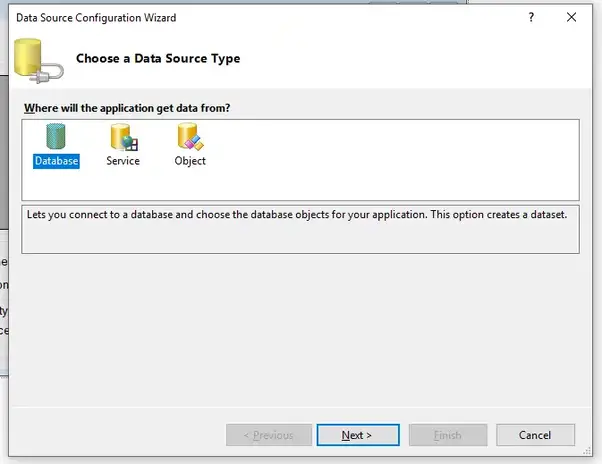
- Step 7: Choose a Data Source Type
Select Database and click Next.
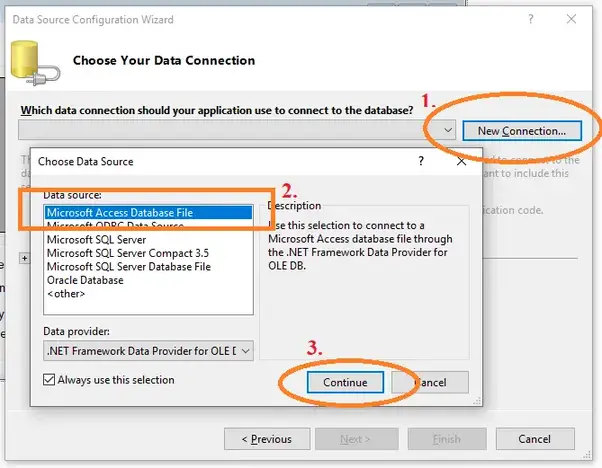
- Step 7: Choose a Data Source
Click new Connection then, Select Microsoft AccessDatabase file and, Click Continue. Follow the image below.
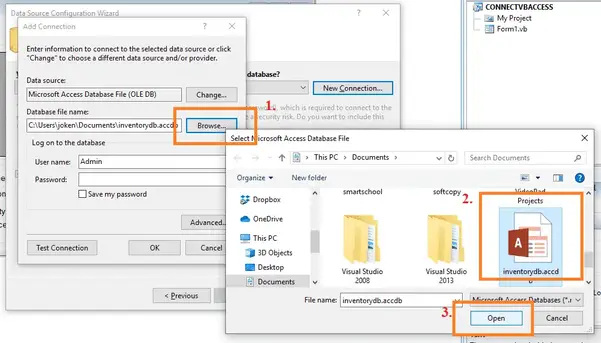
- Step 9: Add Connection
First, click Browse Button then, Select “inventorydb.accdb”, Lastly, Click Open.
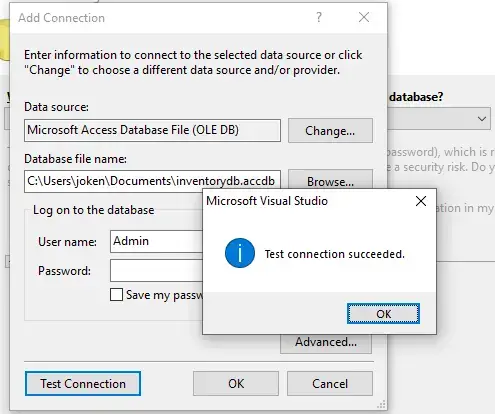
- Step 10: Test Connection
To test the connection, click the “Test Connection” button, finally click “OK” button at the side of the “Cancel” button.
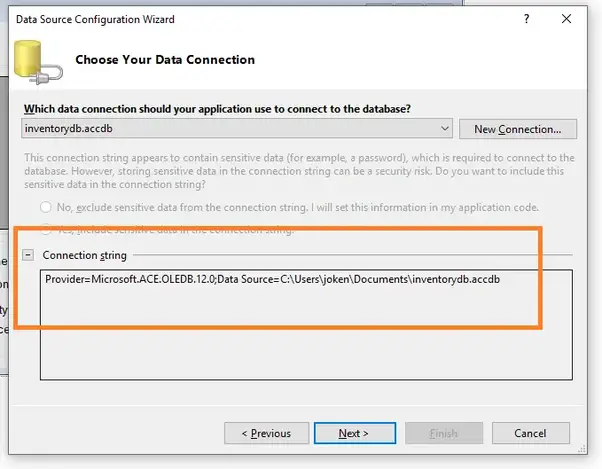
- Step 11: Copy the Connection String.
Copy the connection string so that we can use this in our next step.
- Step 12: Start Coding.
In this final step, we will now start adding functionality to our vb.net program by adding some functional codes.
Code To Connect Access Database in VB.Net
Double the “Form1” and add the following code under “Public Class Form1”.
The Code above started with a Declaration of Variable name “con” with an Ole Object Type OledbConnection.
Inside OledbConnection, we pasted the connection string we copied from the “Step 11” instructions.
Test the Connection of Access database in VB.Net
To test the Connection between ms access database and VB.Net, Double click the form1 add the following code under “Form1_Load” events.
- We use try-catch to the exceptions that may occur during runtime.
- open the connection
- check using if statement if the connection is open
- ‘Display a message box if successfully connected or Not
- close the connection
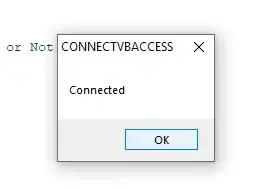
Press “F5” to run the Project.
When you run the project it will give you this message.
How to Load Record from Access Database to Datagridview In VB.Net
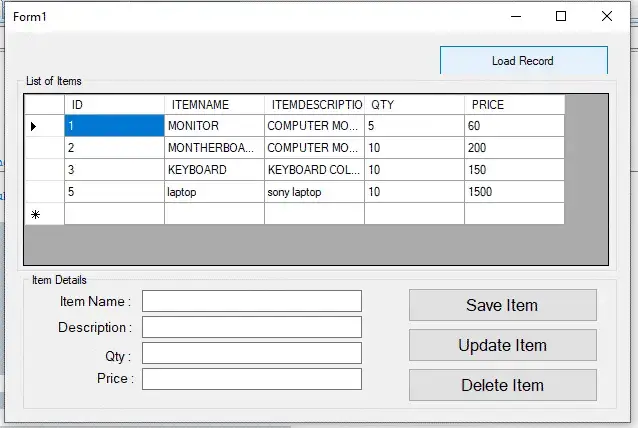
In this section, we will learn how to load a record from the Access database to Datagridview using vb.net. To start with, double click the “Load record” button and add the following code.
After adding the code, you may press F5 or click the Start debugging button to test the code. The output should look like as shown below.
Save Record in Access Database using VB.net
In this section, we learn how to save the record in the access database using vb.net. To do this, double click the “Save Item” button and add the following code.
Code explanation
- We start the code by adding try-catch
- declare variable “sql” as a string this will hold the INSERT STATEMENT.
- Declare variable “cmd” as oledbCommand it represents an SQL Statement or Store procedure to execute against a data source.
- next, we open the connection
- Then, we assign a query command to “sql” variable.
- Execute the Command
- Then in we assign the result of “ExecuteNonQuery” to “i” variable
- Next, we check if the value of the variable “i” is greater than 0
- we use if condition statement if the result is true then will display a message box “New record has been inserted successfully!”.
- else if the result is false, the display is “No record has been inserted successfully!”
At this time, you can now press “F5” to test code.
Updating of Records from Access Database In VB.Net
In this section, we will learn how to update records from an access database using vb.net. In order for us to proceed in updating the record, we will add first a code to pass value from datagridview to textboxes.
To start with, go back to form design and double click the datagridview. And Change the Event to “CellClick” from “CellContentClick”. It means that every time the user clicks the selected data in the Datagrid view, the value will automatically pass to the textboxes. So here’s the following code.
And here’s the Following code for Updating the record from access database using vb.net.
The code we use for updating the record from ms access database using vb.net is almost similar to the code above for inserting a new record to ms access database in vb.net.
Only the Query is different.
Deleting of Records from Access Database In VB.Net
For deleting of records from the access database in vb.net, we will still use the same code in inserting and updating the record from access using vb.net.
Go back to Form design and double click the “Delete Item” button. Then add the following code.
After this process, you can now run the program to test if all the codes in this tutorial are working well.
Bonus Tips.
Watch the full video tutorial about How to Connect Access Database in VB.NET until the end to see the bonus techniques and apply them to your project.
After you complete this tutorial, you can proceed on how to master VB.Net and MySQL Database in 30 minutes.


Comments
Post a Comment